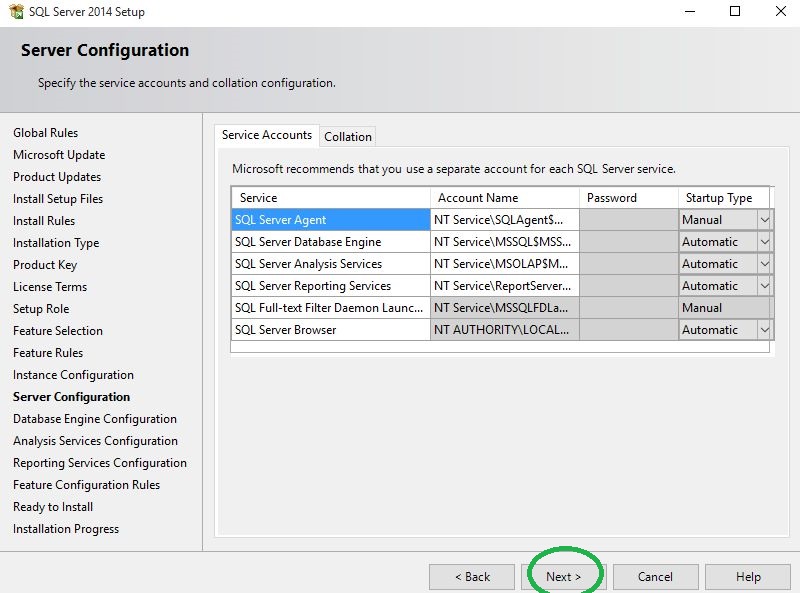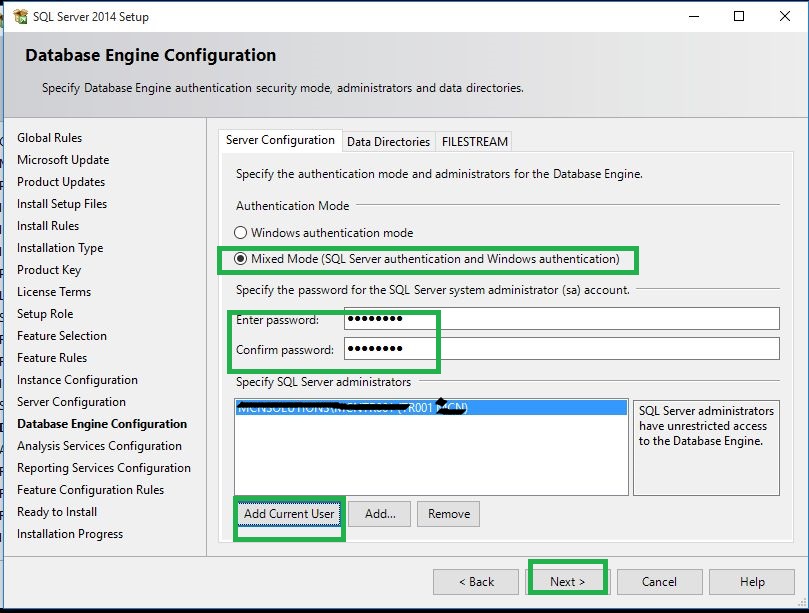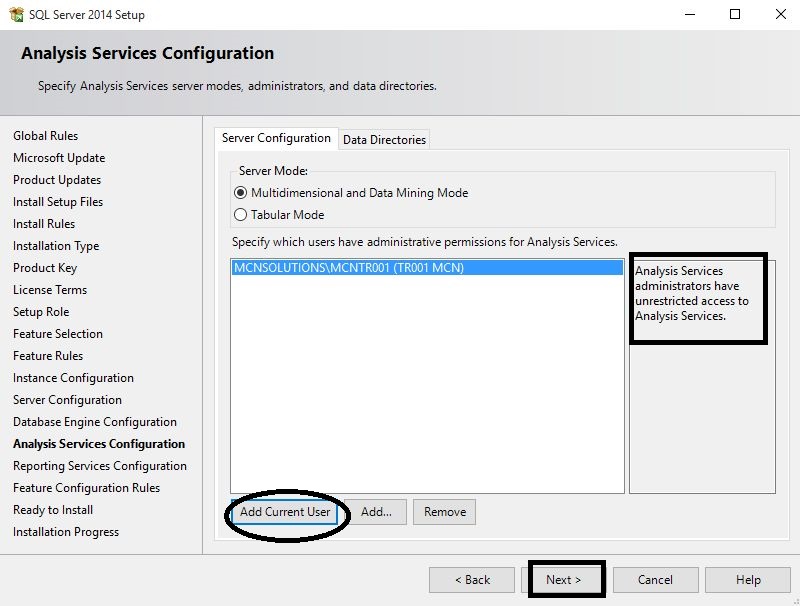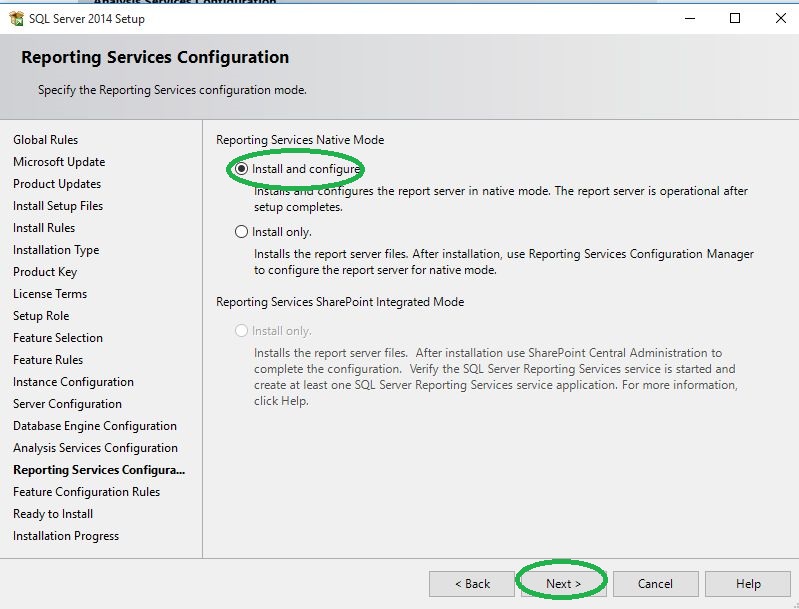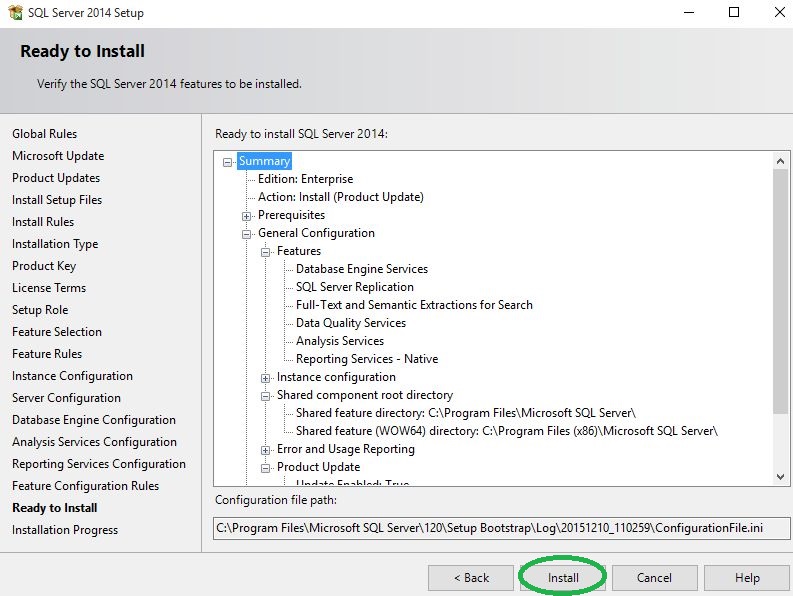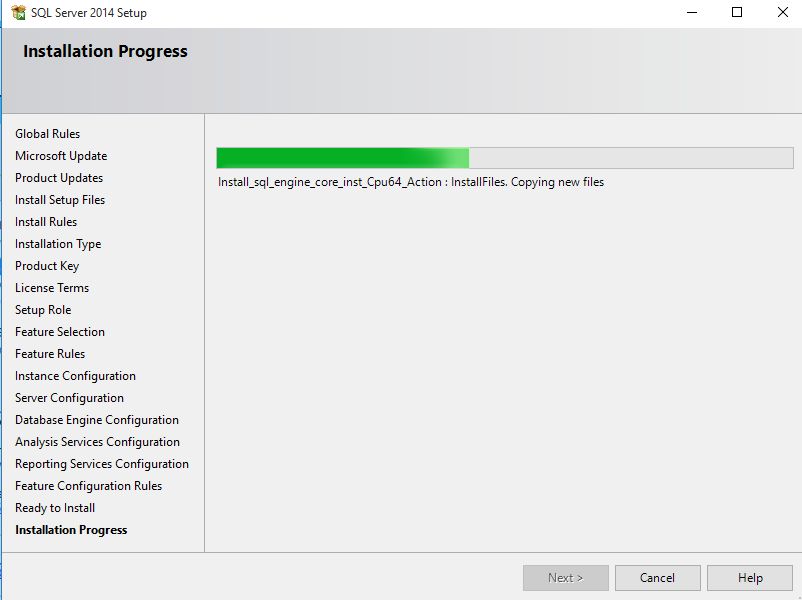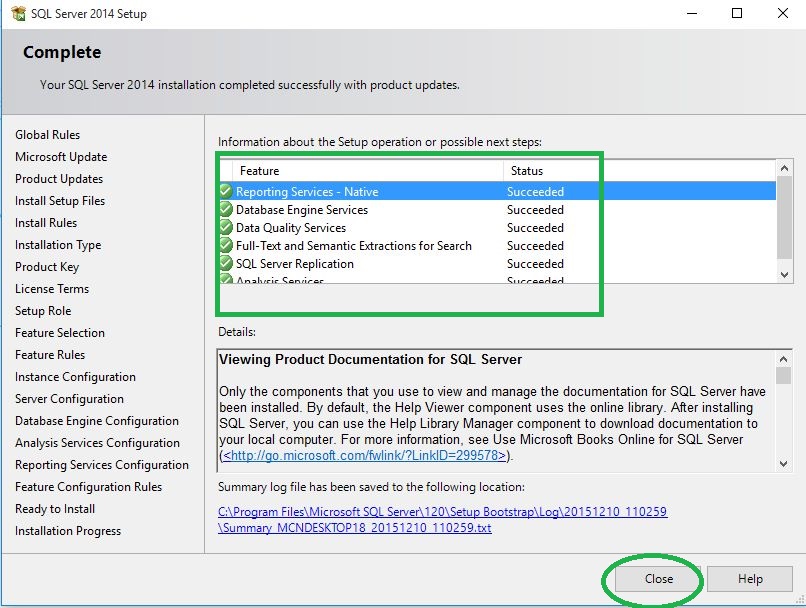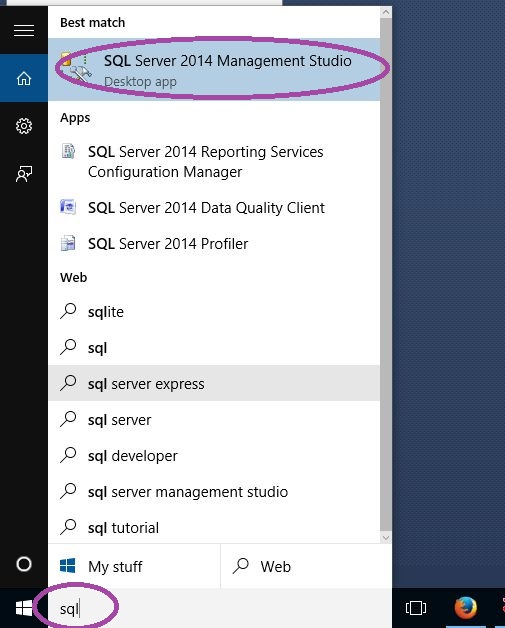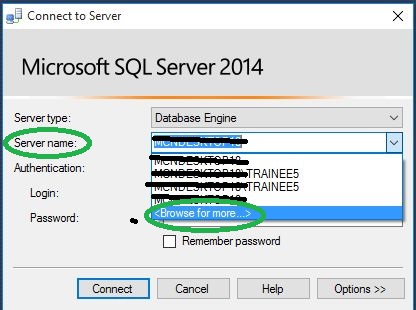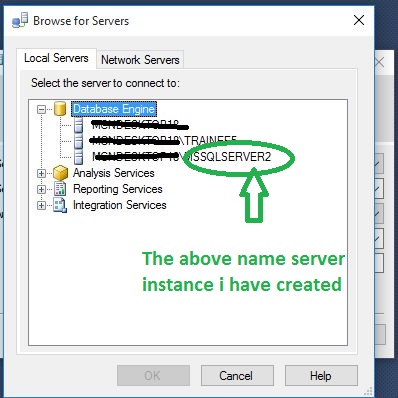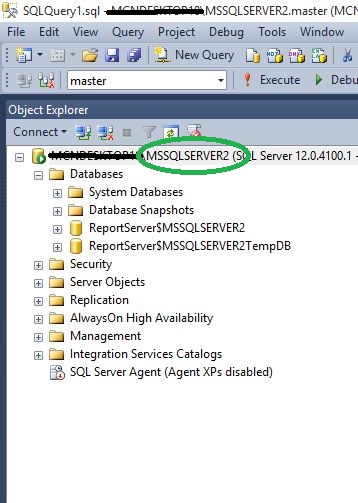
Installing a new instance of SQL Server 2014 Enterprise Edition is an easy task by using SQL Server setup installation wizard. Once an instance is installed on your system, you have the option of installing multiple instances of the same SQL Server on your system.
Before installation please ensure and check the hardware and software minimum requirements for installing SQL Server 2014.
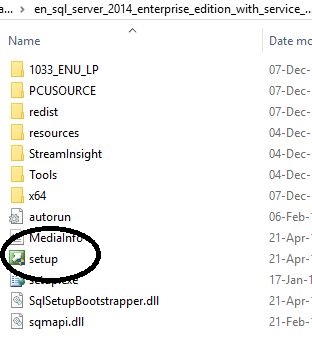
Step-by-step procedure - Firstly, go to the SQL Server Setup folder, Click on Setup as in the following,
Example
Step 1 - In first step of Planning: You have the option of Insuring/Checking Basic Hardware & software requirements before installation
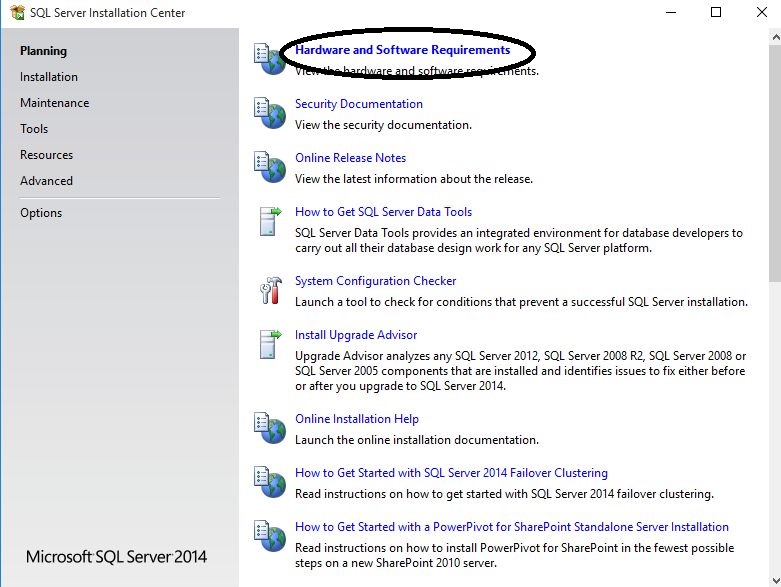
Click on Hardware and Software Requirements: It will take you to the online Microsoft page, please check requirements before installing SQL Server 2014.
Step 2 - Click on Installation: In this section click on New SQL Server stand-alone installation or add features to an existing installation.
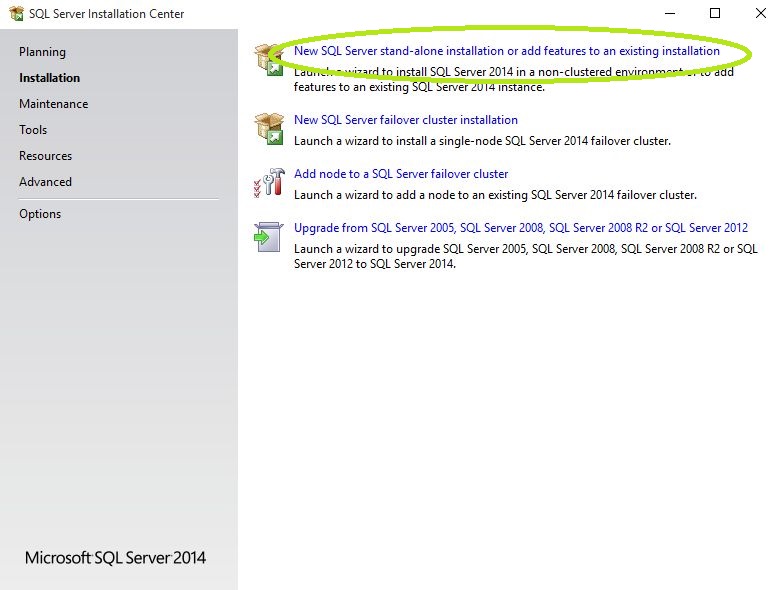
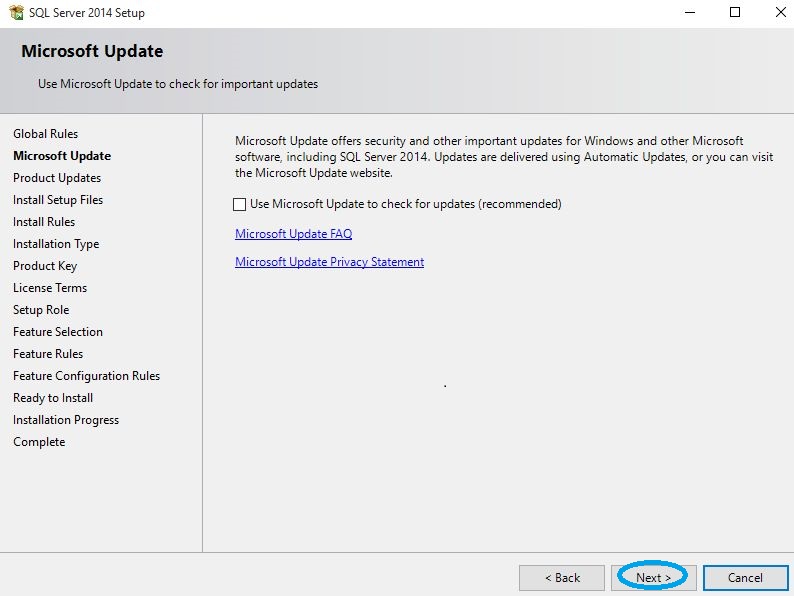
Step 3 - A new window will open: Click Next.
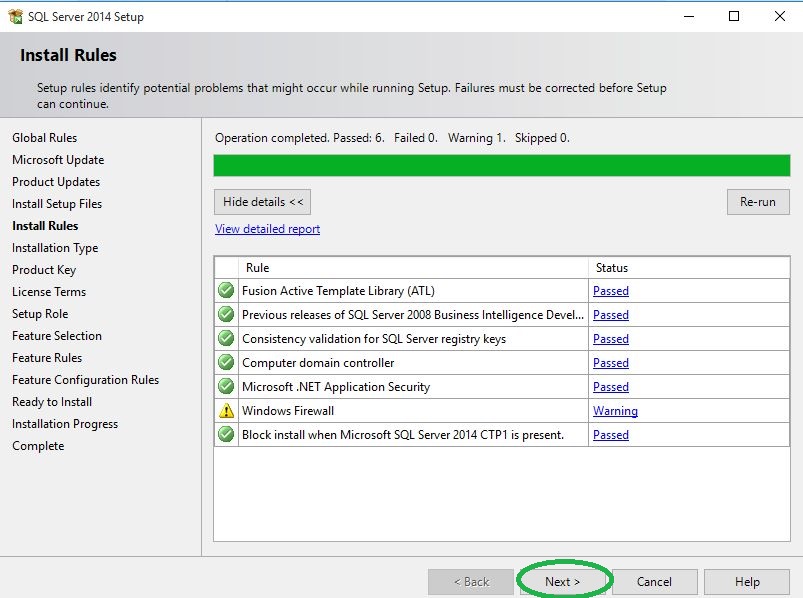
Step 4 - Clicking on Next under Install Rules: You can see rules passed, error on Windows firewall, for this click on warning and TurnOff windows firewall and click Next.
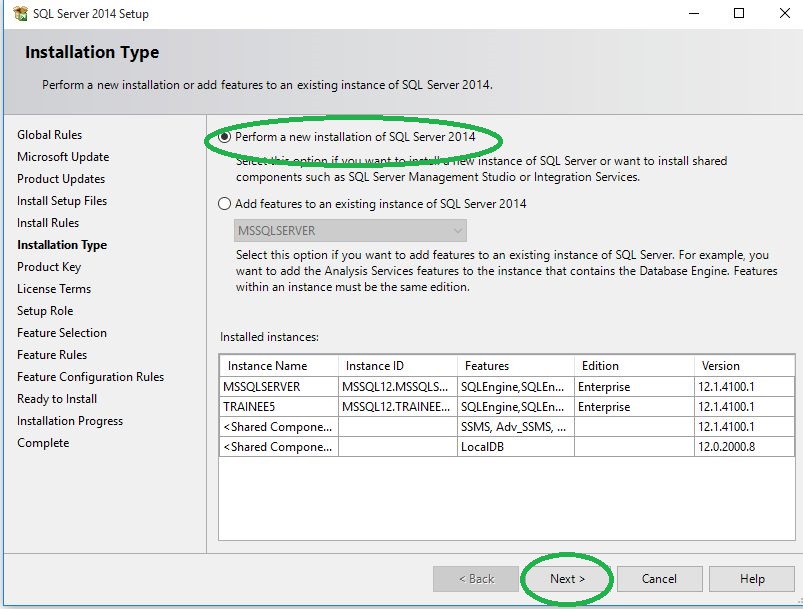
Step 5 - In Installation Type: Select Perform a new installation of SQL Server 2014 and click Next.
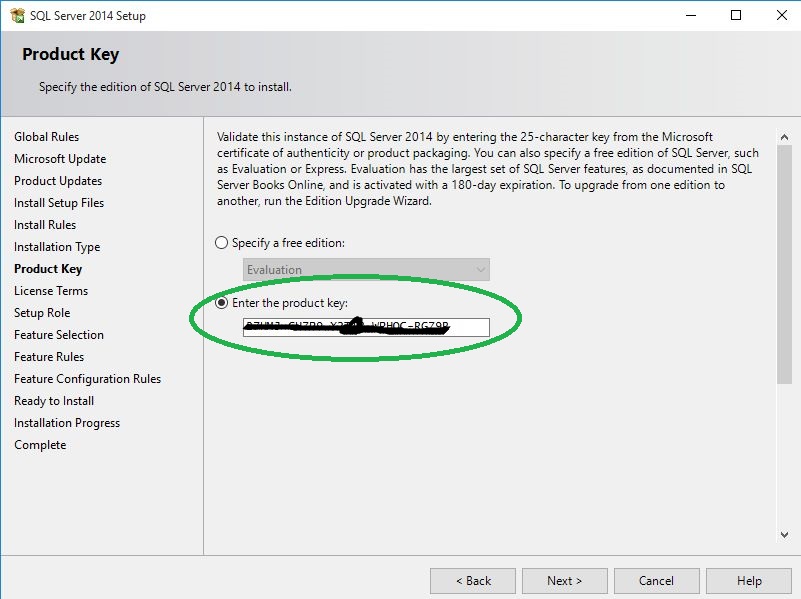
Step 6 - In Product key: Enter the product key, click on next.
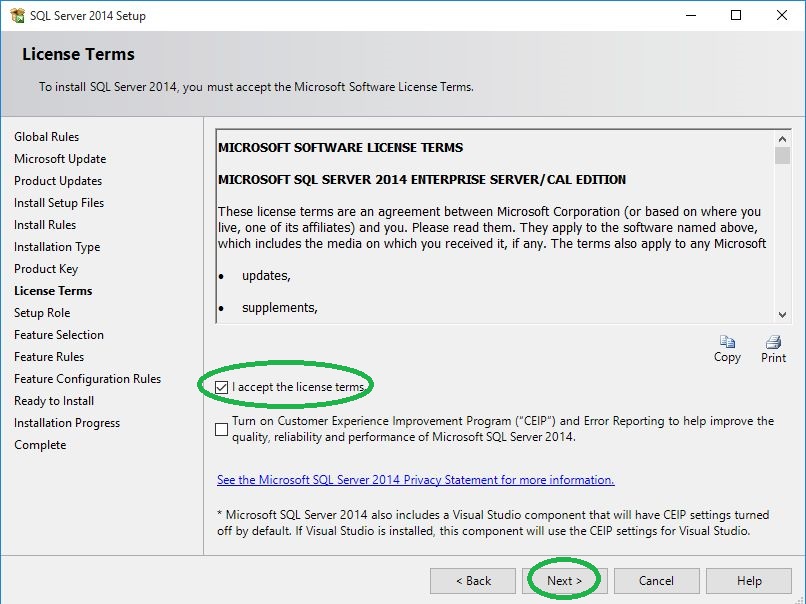
Step 7 - In License Terms: accept terms, click on Next.