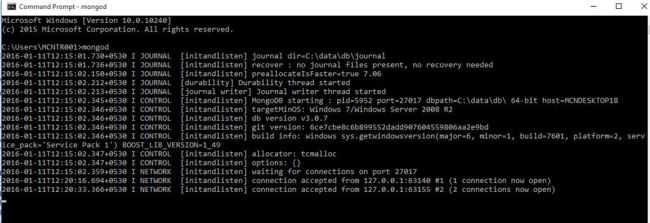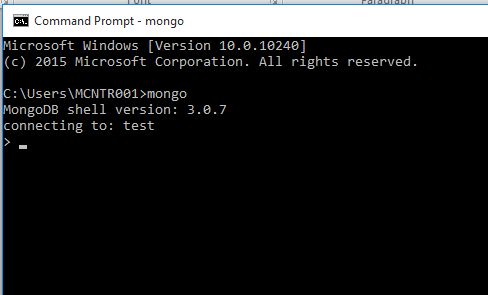
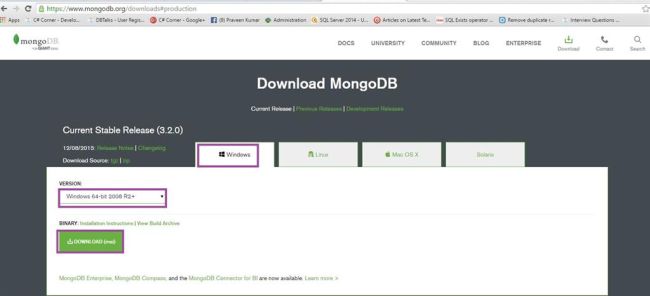
Firstly, download MongoDB setup from the MongoDB Web site or by clicking on the following link. You will get the option to choose Windows operating system 32 bits or 64 bits supportive setup. Unzip extracts to your preferred location.
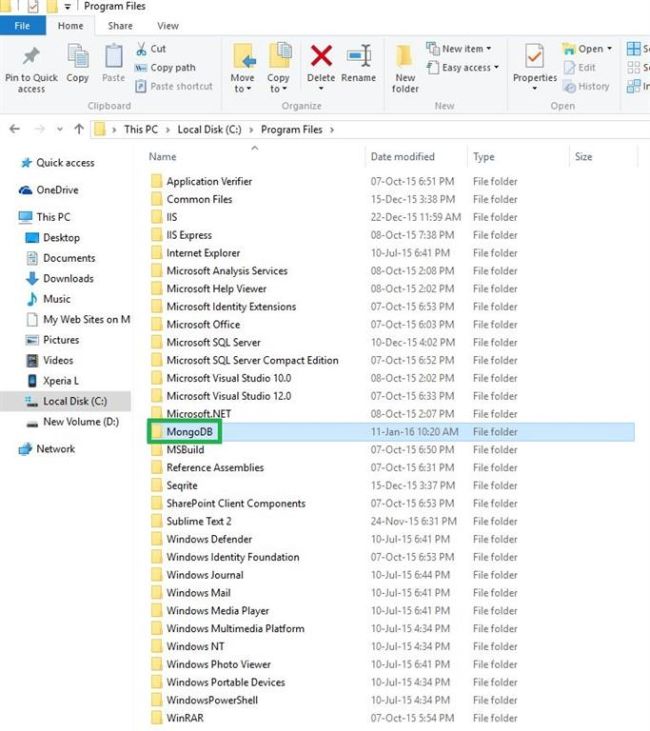
Example - It is saved on my system location path: C:\Program Files\MongoDB
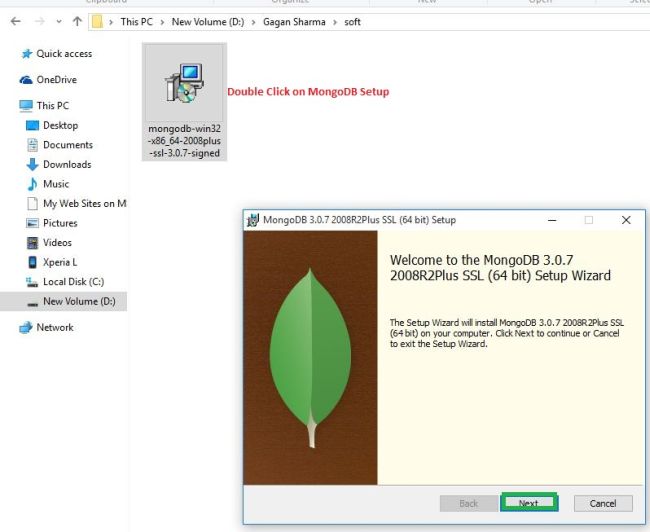
Now, I’m going to install mongodb version MongoDB 3.0.7 setup of 64 bit in Windows 10.
Step 1 - Double click on MongoDb Setup, and then click on Next option in setup wizard.
Step 2 - Now check the License Agreement option.
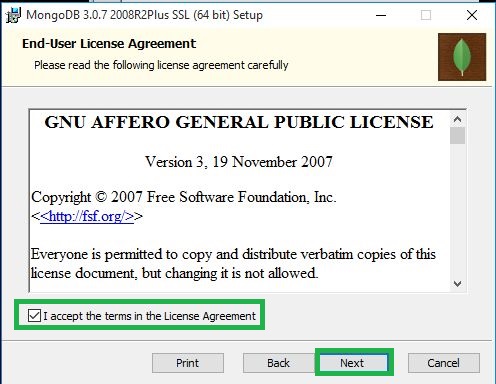
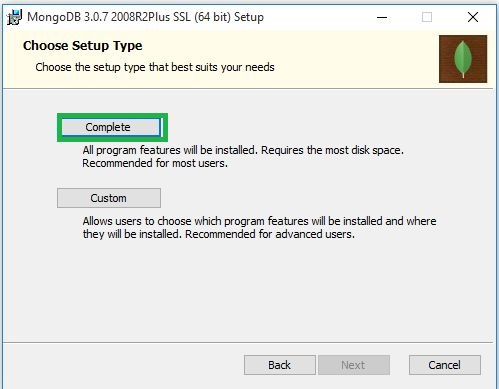
Step 3 - Select Complete option for full mongodb installation.
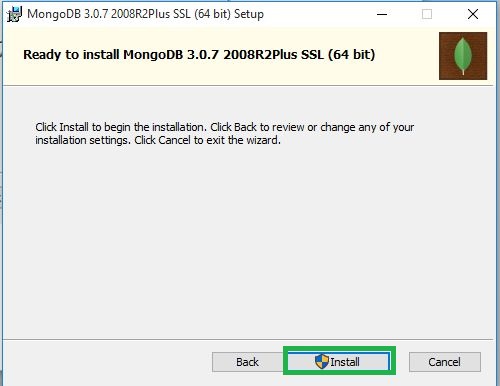
Step 4 - Click on Install option.
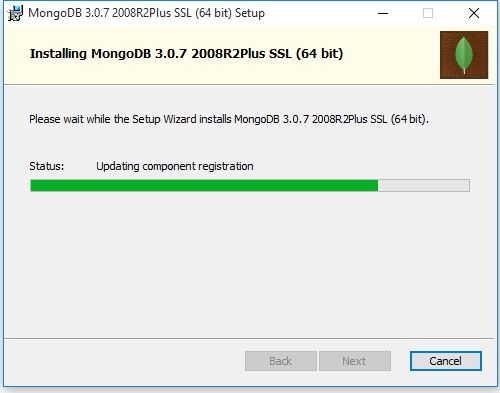
Step 5 - You can see installation processing is on.
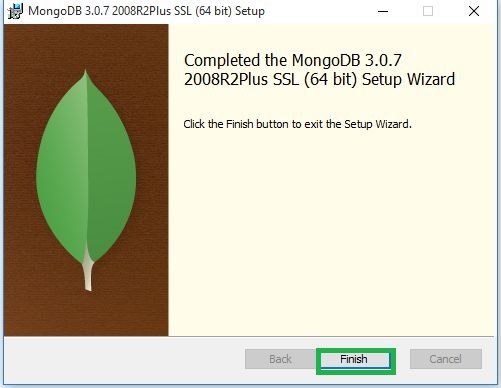
Step 6 - Click on Finish button.
Now, after successful installation of MongoDB you will find that a folder named MondoDB has been created in your directory. You can find this folder here: C:\Program Files.
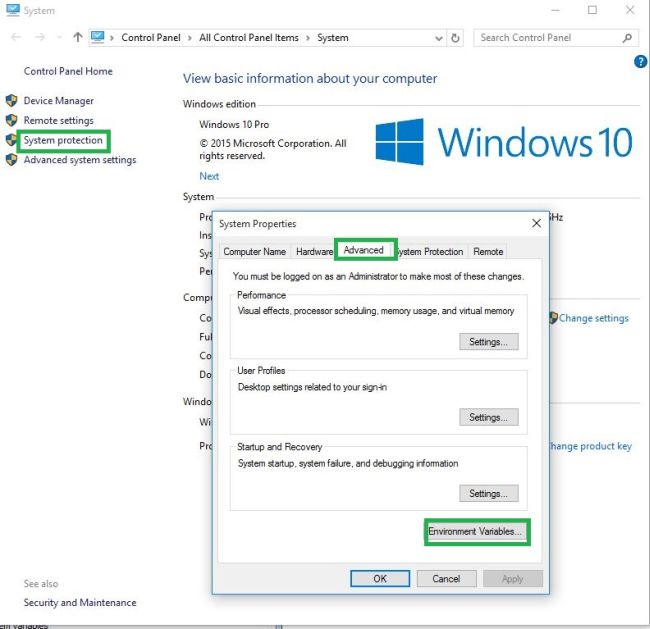
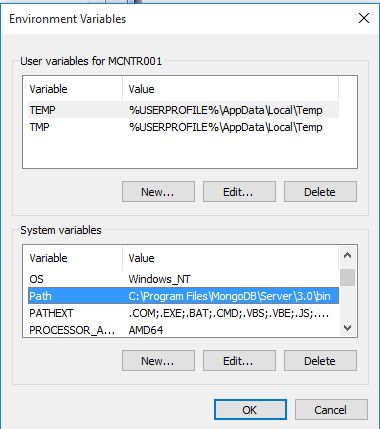
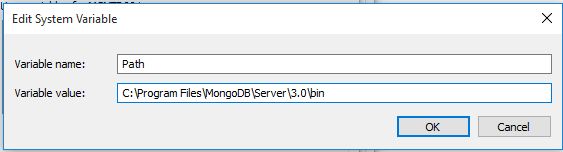
Steps to select the path of installation location or to verify that the setup installed location is correct.
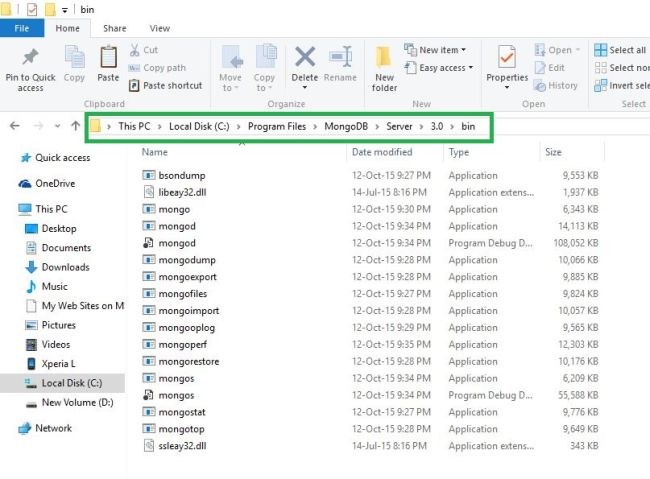
Note - The above saved location path: C:\Program Files\MongoDB\Server\3.0\bin
Now, go to System Properties and press the button to check and confirm correct setup location in your system.