
Restore is a process of copying backup files from secondary storage like tape, zip disk or other backup media to hard disk. A restore is performed to get data of its original condition, if data is corrupted or to copy or move data to a new location. There are two methods to restore a database in SQL Server 2014:
- By using SQL Server Management Studio (wizard).
- Through T-SQL scripts.
Method 1. Restore a Full Database Backup using SQL Server Management Studio.
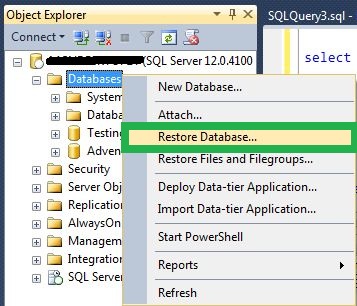
Step 1: Open SQL Server Management Studio and connect to the appropriate instance of Microsoft SQL Server Database Engine in Object Explorer.
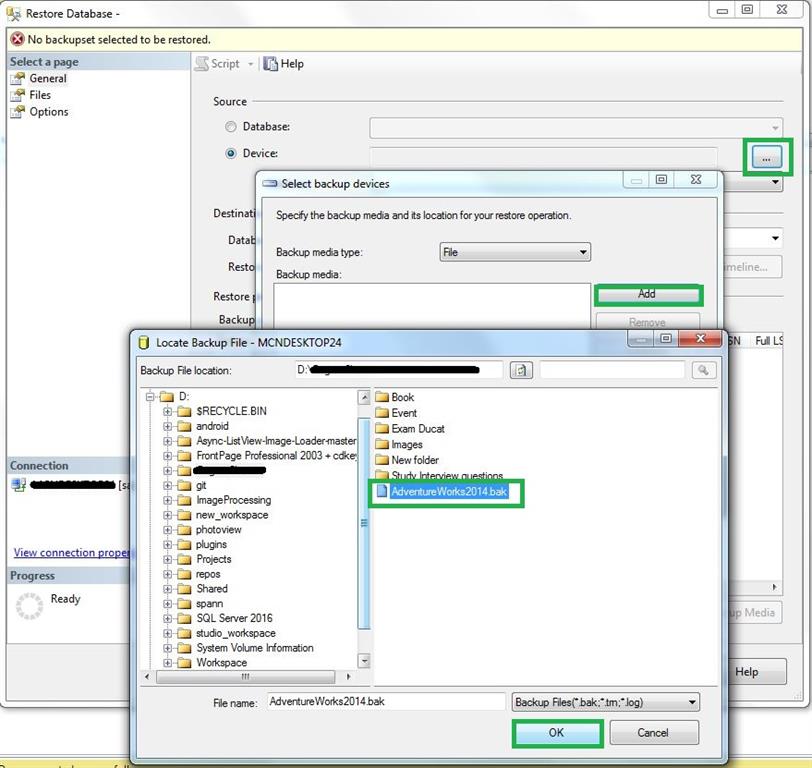
Step 2: In General, click on the Device option to get path location, click on Add button to Locate Backup File, select the database with file extension .bak and press OK.
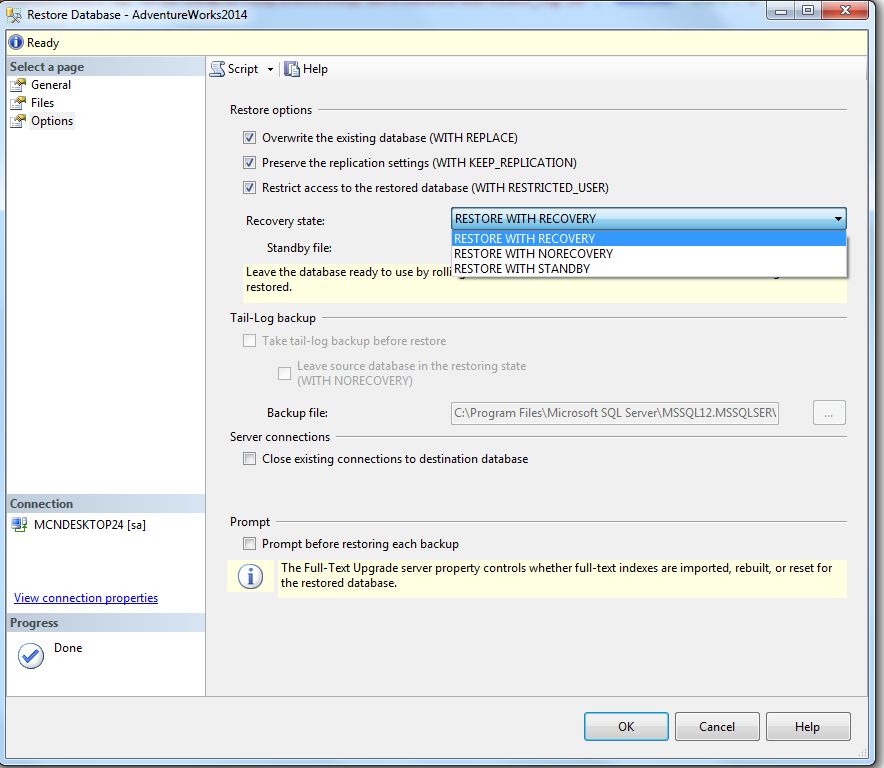
Step 3 : In Options, you can specify Restore Options like Overwrite the existing database etc by checking the options you want.
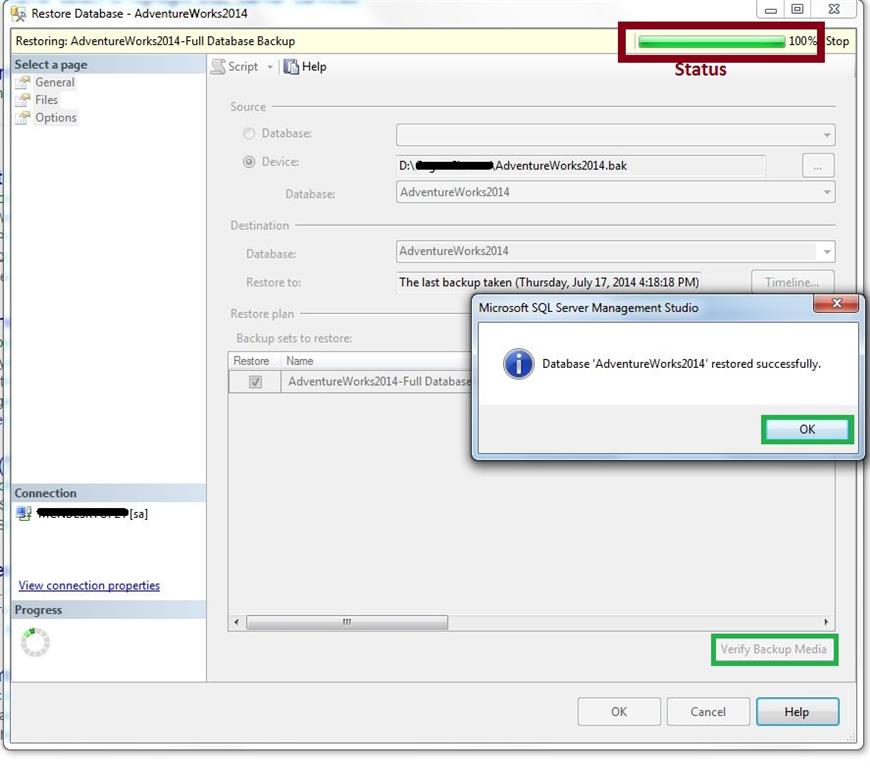
Step 4 : In General, click on verify Backup Media or click on Ok button to check that the desired database is attached or not. After successful attachment you will get a pop-up that “ Database database_Name restored successfully”.
Now go to your object explorer, just refresh the master database.
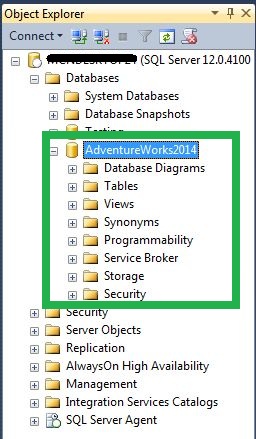
The database is ready for use.
Method 2. Restore Database using query
- USE [master]
- RESTORE DATABASE [AdventureWorks2014] FROM DISK = N'D:\Folder_Name\AdventureWorks2014.bak' WITH FILE = 1,
